
I kept getting this stupid line that kept moving up when I tried to delete it. Most likely from me copying and pasting text from Microsoft Word to Libre Office.
Here are the steps to delete it
1) Open the document
2) Select all text with Ctrl+A (Note: his can also be done on individual paragraphs without selecting all text)
3) Click on Format–> Paragraph
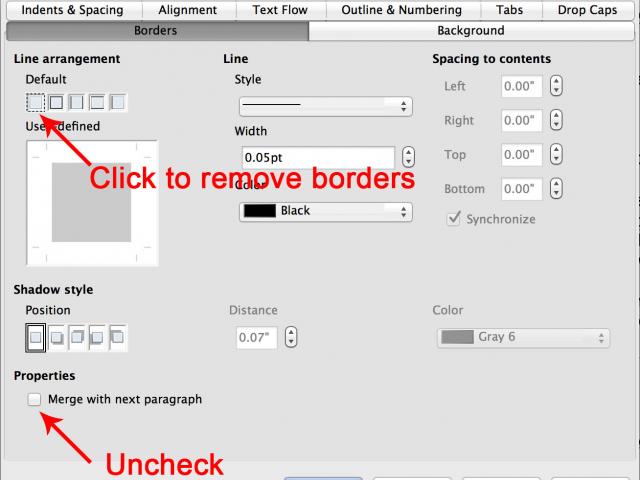
4) Click on the Border Tab and uncheck all borders AND the checkbox “Merge with next paragraph”
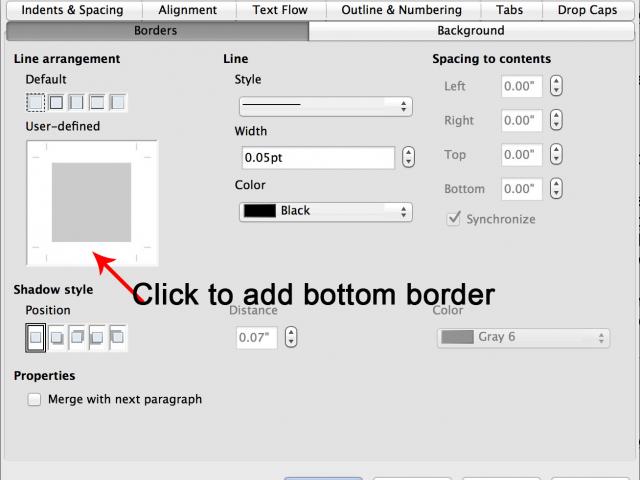
5) Now you can go manually and remove or add the horizontal rules by placing your cursor on the line you want the horizontal rule to be and going to Format –> Paragraph, and then checking the bottom border.
Source: http://www.oooforum.org/forum/viewtopic.phtml?t=72302 post by BillP
Dude, you are a lifesaver. Thank you! Nugs and hugs!
You’re welcome!
Some heroes don’t wear capes, thank you. I still got a very stubborn horizontal line at the bottom of the file that just wont go away but everything else now is clean, thank you so much.