
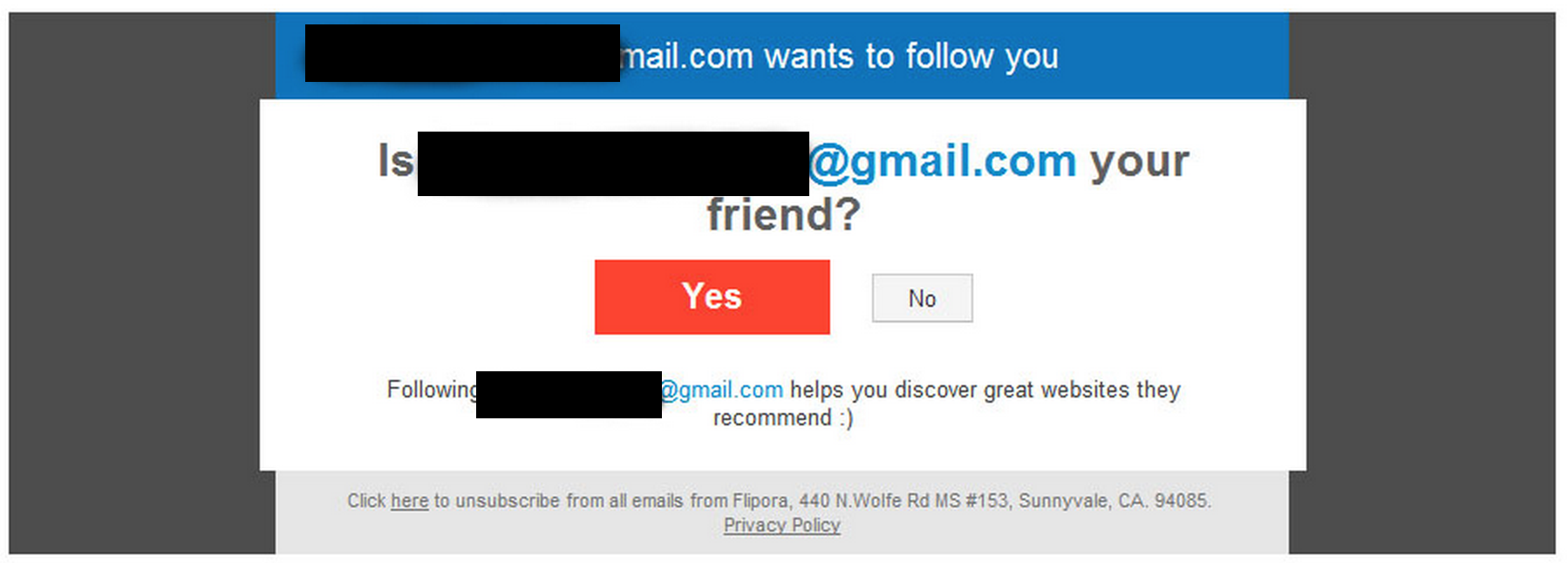
My mother signed up for Flipora thinking one of her friends sent her an invite, and it turned out its a scam/phising attempt. Soon after everybody in her contacts started receiving SPAM and invitations to the service. I found the blogpost below which has helped so far, I added some notes since I’m using chrome and the post was for firefox.
Updated : 12/5/2014: — I have not received any more Flipora/InfoAxe SPAM after following the steps below!
IQ ELITE UPDATE 12/5/2014 –>I received a suspicious email from a contact I dont know that looked exactly like this Flipora/Infoaxe.net malware extension called IQ ELITE. I am noting this because if they are very similar the steps to remove it from your account would probably be the same.
————————————————
Remove Flipora (infoaxe) Spyware Add-on
0) Change Your Password!
Flipora (Flip) is a spyware Firefox/Chrome plugin/add-on/extension (I don’t know if they have an add-on for other browsers) that spreads through email invites to a fake social network. If you submit your email password on their website all your contacts (and probably everyone you ever emailed) will receive the same fake invite that you got, asking to install this spyware plugin. If you entered your email or Facebook password in their website (flipora.com) or while this add-on was installed – change it as soon as possible.
Note: As somebody pointed out in the comments, there is no easy way to update your password on a tablet/phone, login to a computer and change your facebook/email password!
1) Remove Extension
***In this step : take the time to remove any other extensions that look suspicious or that you dont remember installing. This may include others like: SearchMe, IQ Elite etc.
==>Desktops and Laptops:
Firefox Method 1: Go to Add-ons Manager by pressing Ctrl+Shift+a or Tools > Add-ons, find Flipora and click remove and restart the browser.
Firefox Method 2: Type about:addons and remove the flipora extension.
Chrome: Go to Settings –> Extensions and remove anything related to Flipora or Infoaxe.
==>Tablets:
Firefox: Tap the harware “Menu” button or the software “Menu” button > Then click on Tools > Tap “Add-ons” and now click and hold the Flipora/InfoAxe extension. A pop up will appear, choose “Uninstall”.
Chrome: Does mobile chrome have extensions?
2) Change Homepage
==>Desktops and Laptops:
Firefox Method 1: Go to Edit > Preferences, navigate to the General tab and change your homepage to what it was before. I use https://www.google.com
Firefox Method 2: Type about:config into the address bar and then search for “homepage”, select “browser.startup.homepage” and either right-clicking on each field and select Modify or double click each field to edit its Value. Look for any other homeapage setting that may overwrite the homepage by looking for infoaxe/flipora URLs under the Valuescolumn.
Chrome: Go to Settings –> Change default starting page.
==>Tablets
Firefox: Doesn’t have a homepage.
Chrome: Doesn’t have a homeapge.
3) Change Default Search Engine
==>Desktops and Laptops:
Firefox Method 1: In the search bar click on the current search icon > Manage Search Engines, click on Google + Flipora and press remove.
Firefox Method 2: From the address bar go to about:config (if you get prompted click “I’ll be careful, I promise!” ), in the text field that appears search for “infoaxe” and right click,reset all values that contain infoaxe. I reset “browser.search.defaulturl”, “keyword.URL”, “extensions.infoaxetoolbar.infoaxetoolbar.lg” and “extensions.infoaxetoolbar.splashShowed”. Also reset every value that contains “flipora”.
Chrome: Go to Settings –> Search tab and change from Flipora to Google, or your default.
==> Tablets:
Firefox: Tap the harware “Menu” button or the software “Menu” button > Tap on “Customize” > Tap on “Search Settings” > Tap the search engine you want and select “Set as Default”
Chrome: Tap the harware “Menu” button or the software “Menu” button > Tap on “Settings” > Tap on the search engine you want.
4) Delete Cookies
==>Desktops and Laptops:
Firefox: Delete Flipora cookies – go to Firefox Preferences > Privacy > remove individual cookies, search for flipora and remove all their cookies. Then search for infoaxe and do the same.
Chrome: Go to Settings –> at the bottom click on “Show Advanced Settings” and under Privacy click on “clear browsing data” deselect all but “Delete cookies and other site and plug-in data”
==>Tablets
Firefox: Tap the harware “Menu” button or the software “Menu” button > Tap on “Settings” > Tap on “Privacy” > At the very bottom of the list press “Clear private data” and select “Cookies & Active logins” as well as “Cache” > Press “Clear Data”.
Chrome: Tap the harware “Menu” button or the software “Menu” button > Tap on “Privacy” > at the very bottom or top, press “Clear Browsing Data” > Select “Clear cookies, site data” as well as “Clear the cache”. > Press Clear.
5) Revoking Flipora access to your Google account
Go to http://google.com/accounts (log in if required), click “Security”, under “Connected applications and sites” click “Manage access” and if it’s there, revoke access for Flipora and other services you don’t trust.
6) Remove Facebook Application
Go to Settings–>Privacy Settings , On the left menu bar click on Apps and remove “Flipora” from the facebook applications.
Hopefully this will stop your account from spamming your contacts!
———————————
Source: http://hkdq3twzzmqrut376gwu.wordpress.com/2012/06/08/remove-flipora-infoaxe-spyware-add-on/
According to Forbes this is a viable product and a big competitor on content delivery
Thanks for the comment. Although Forbes may say that, my experience with this extension and the experience of thousands who visit this page daily is that this extension and company are using social engineering to gather user data, by deceiving users into thinking a “friend” of them invited them to join a website, and then spamming everyone on their contact list in order to gather more data and “users”. It would be interesting to see the data and facts that Forbes used to make that statement. Have a nice day!
Emmanuel, I really appreciate you posting this. It’s unbelievable how this scam company is still surviving. You saved me a lot of headache. Thank you very much!.
Forbes will not come to save you when all your contacts are compromised and your identity stolen. Be your own judge. This company is a scam. Just google “Flipora” and you will see more hits about spam and virus than anything useful.
You’re welcome! I’m happy you were able to find this post helpful. Have a nice day!
I think I followed all of these steps but I just found out it is still sending messages through my disqus feed?! Any ideas?
Hi Beth,
It looks like Disqus has a section for Apps that can control your Disqus account. Login to your Disqus account and remove anything that looks suspicious. Here is a screenshot of this section https://dl.dropboxusercontent.com/u/8083770/Disqus.png Let me know if this fixes your problem and I’ll add it to the How to.
That is the messed up part. After I commented on your post I dug a little deeper and I found that section that you are talking about I saw nothing there, it was empty. I sent them (Flipora) an email telling them to cancel my account immediately and changed all my passwords then deleted all the spam comments from my disqus feed. It has now been 2 days and all is good, at least I hope so ;).
That is strange :/ lets hope they do stop indeed!