

I’ve seen a lot of magic mirror projects and finally decided to make my own 🙂 I don’t spend much time looking in the mirror so I decided to make it instead an entry way mirror. As I leave the house, I can see my calendar, what the weather should be like, and motivational quotes. I relied heavily on the post below, just followed step by step, added missing steps, and took out some of the wordiness of the post. Will post pictures once I finish!
Some other pictures of the project 🙂
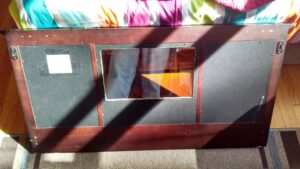
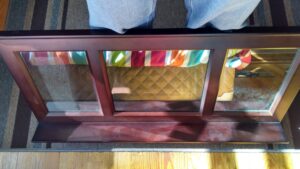
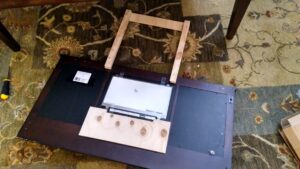
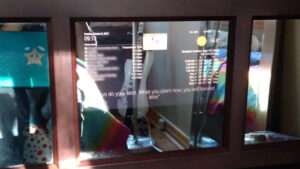
Mirror Update 1/31/2019!!
Sources:
Materials:
- LVDS Board Controller ($60)
- 14″ 1080p LCD ($40)
- Raspberry Pi Zero W ($25 with kit) – https://amzn.to/2QkXBPC
- 8GB Micro SD card (~$5 but had spare at home)
- Entry Way Mirror ($15 at garage sale)
- Two Way Mirror ($80, price depends on size and acrylic vs glass, includes $15 shipping)
- Being the pretties of them all ($0)
Update 10/20/2022: I’ve tried updating this guide but electron for 32 bit hasn’t been supported for over 1.5yrs so I’m running into many problems getting this up and running. It may be time to upgrade to a new pi :/ . I do have a RPI 3 which I will use to bring my magic mirror back to life
Update 5/4/2020: New updated Image! With this new image, there was a popup that kept saying that chromium needed to update, and then it would fail to update. I disabled that pop up by following this link which tells it to check for a new version every year. Hopefully chromium will have a new version for the pi zero before then, enjoy!!
Update 8/17/2019: Yay! I’ts up are running again!! Thanks Igor 🙂 I’ve updated the guide with latest steps, specifically this line is needed to install latest version of electron on the pi zero “npm install –arch=armv7l”
Update 7/27/2019: electron won’t install on armv6, it even after specifying ^2.0.0 it tries to install 1.8.0 and it doesn’t find it in the electron repository. I think it was removed for security reasons. Magic mirror on pi zero is broken until further notice :/ please leave a comment if you know of a fix!
Update 4/16/2019: Latest magic mirror install fails because armv6l is not supported for electron 3.0.0 or higher. I need to troubleshoot this further but was able to install the magic mirror by modifying the package.json file and changing electron version to “^2.0.0” Will try to find a way to get this working on latest electron.
Update 9/28/2018 : with Raspbian Stretch, Midori would display a white screen due to “connection refused” when trying to access http:localhost:8080, I switched to chromium-browser and updated the guide to reflect that.
- few things I learned:
- $xinit chromium-browser should not be run with sudo
- If magic mirror is running successfully do $ sudo netstat -tlnp | grep 8080 and it should return one line with 127.0.0.1:8080
- You cannot launch chromium-browser remotely so you will need to run ./mmstart.sh directly on the pi
- Raspbian Stretch – chromium_start.sh error “/usr/lib/xorg/Xorg.wrap: Only console users are allowed to run the X server” –> until this is fixed pm2 won’t launch chromium-browser
- Solution: Change the value of “allowed_users=console” to “allowed_users=anybody” in /etc/X11/Xwrapper.config must be fix your problem.
Other Magic Mirror with Pi Zero Projects!
Steps in Order of execution
Download and install the latest version of raspbian
Enable SSH, change locale, change keyboard layout
- On the boot up screen
- Change Keyboard Layout
- Select US
- Change WiFi Country
- US
- Change Keyboard Layout
-
- This is now on the boot up screen, connect your raspberry pi to your wifi network through the built in gui.
Update OS
- The gui wizard will ask you if you want to update the OS, chose yes. Otherwise execute $sudo apt update && sudo apt upgrade
SSH into Rpi
Once you are booted into the desktop, go to system preferences > interface and enable SSH
- Figure out what IP address the rpi has, run the command
- ifconfig
- From your computer
- ssh pi@<IP address>
- Enter Rpi password raspberry
Optional : Install Vim
- sudo apt install vim
Install Node.js and electron
- Get latest version of node
- $ sudo apt install nodejs
- $ npm install electron
Install NPM
- sudo apt install npm
Install git
- sudo apt install git
Get back to home folder
- cd or cd ~/
Clone magic mirror repo
- git clone https://github.com/MichMich/MagicMirror
- cd MagicMirror
- npm run install-mm
- ** grab a beer and wait like 20 minutes
Install a Chromium Browser ( already install on latest raspbian version!)
- sudo apt install chromium-browser
- ** grab another beer (but don’t get drunk, we aren’t done)
- disable the popup by executing this command
- $ sudo touch /etc/chromium-browser/customizations/01-disable-update-check;echo CHROMIUM_FLAGS=\”\$\{CHROMIUM_FLAGS\} –check-for-update-interval=31536000\” | sudo tee /etc/chromium-browser/customizations/01-disable-update-check
AutoLogin to raspberry pi
- sudo raspi-config
- System Options -> S5 Boot/Auto Login -> B2 Console Autologin
Install Xorg (display server)
- sudo apt install xorg
Install matchbox (window manager)
- sudo apt install matchbox
Get rid of cursor with Unclutter
- sudo apt install unclutter
Make two script files at the root of the operating system ($cd ),
- mmstart.sh – for starting MagicMirror and xserver/chromium on startup
- sudo vim mmstart.sh
- #!/bin/bash
cd ~/MagicMirror
node serveronly &
sleep 30
xinit /home/pi/chromium_start.sh
- #!/bin/bash
- chromium_start.sh –> for starting xserver and chromium
- sudo vim chromium_start.sh
- x
- Make both files executable
- $ sudo chmod a+x mmstart.sh
- $ sudo chmod a+x chromium_start.sh
At this point, you should be able to run “node serveronly” from the Magic Mirror folder and start magic mirror successfully.
From a different terminal, run the following command and chrome should load the magic mirror (http://localhost:8080)
- $ xinit ~/chromium_start.sh
To quit magic mirror while running:
- press ctrl +alt + f1 and press ctrl+c, this is also a good place to see any errors with your magic mirror config file
Auto Starting MagicMirror (I followed the guide on the MM github page)
- Before doing this, make sure any user can launch an Xorg process(IhadtodothisSinceISSHintoThePi)
- Change the value of “allowed_users=console” to “allowed_users=anybody” in /etc/X11/Xwrapper.config.
- $ sudo npm install -g pm2
- $ pm2 startup
- Copy and paste the command that the screen prints out, otherwise the pm2 process won’t save
- Note: Latest version of pm2 didn’t provide this link below but you need to run it or pm2 will not save or start automatically on reboot
- $ sudo env PATH=$PATH:/usr/local/bin /usr/local/lib/node_modules/pm2/bin/pm2 startup systemd -u pi –hp /home/pi
- $ pm2 start mmstart.sh
- magic mirror should start running in chromium
- $ pm2 save
NOTE: Upon reboot, it takes about 1-2 minutes for magic mirror to startup, be patient!
Your Magic Mirror should now be up and running, time to add your modules and configure it!
If you want to skip all these steps, I’ve created an image file!
- Backup and Restore of Image files for raspberry pi!
- Image File:
- Shrunk it with this script
- Download and restore with the link above (Backup and Restore).
- Things to do after restoring:
- Press ctrl +alt + f1 to quit magic mirror
- Setup wifi by updating the /etc/wpa_supplicant/wpa_supplicant.config file.
- Expand the image file by doing $sudo raspi-config and selecting advanced options and expand filesystem
- Update Magic mirror to the latest version, change directory to MagicMirror ($cd MagicMirror) and do $ git pull && npm install
To configure the wifi and edit the config file, you will need to exit Chromium and stop pm2. After that, rebooting will auto start magic mirror again.
- Exit MagicMirror/Midori –> ctrl-w
- Stopping PM2 –> $ pm2 stop all
Additional Steps – Take a look at Christians comment below (Thanks Christian!)
- Expanding the filesystem
- Updating Raspbian Stretch
- Updating MagicMirror
Note: Small bug in Compliments module
If you are loading external JSON file. Take a look at this post to fix one line of code.
CONFIGURATION AND MODULES!
- custom.css – increase contrast and make fonts brighter
- body { color: #fff; }
.region.below {
width: 100%;
text-align: center;
bottom: 100%;}
.normal { color: #fff; }
- body { color: #fff; }
- Disable “fade” for future events, this is a config edit in the JSON of the module
- WUnderground app –> better icons!
- Change icons to “Colourful”
- change so fonts are all white (#fff) and NOT gray
- Add your own compliments!
- Edit the /MagicMirror/modules/default/compliments/compliments.json file
Other Notes:
- I did get the following errors, and went away after running them through the midori_start.sh file
- matchbox: can’t open display! check your DISPLAY variable!
- midori – Cannot open display:
- Failed at using init.d to run script –> midori would start with error loading http://localhost:8080
- I tried running the script as suggested using the lines below, but the magic mirror “serveronly” would not start and I would get an error when running midori. booting up the pi, and then running /etc/init.d/mmstart.sh worked fine, it just didnt like starting the script when booting up, probably node.js hasn’t started before node serveronly is called.
- sudo mv /home/pi/start.sh /etc/init.d/startMagicMirror.sh
- sudo update-rc.d startMagicMirror.sh defaults 100
- Crontab also didn’t work to auto start magic mirror –> midori would start with error loading http://localhost:8080
- sudo crontab -e
- Select your editor, I selected vim
- Add the following line to the last line of the script
- @reboot /home/pi/mmstart.sh
- Modified compliments.js file
- ES6 is not supported in Midori, had to edit the js file as stated in this post for it to show up in Midori
There is no link for the image file. Could you please update the post with it? Thanks
Sure no problem! I ran into a problem trying to shrink the 8gb image to something smaller, I got it down to 2gb but keep getting an error when uploading, likely file size. I’m also trying to shrink the image file significantly to reduce bandwidth.
Ok finally got an image file that uploaded, I tried it on an sd card and worked fine. Please let me know if it works! 🙂
Thanks for uploading the image Emmanuel! its one of the few up to date images for Magic Mirror that you can find on internet right now.
Everything is working fine for the moment. Just two small weird things that I hope you can help me about:
– When I exit Magic Mirror (Ctrl + X) and go to the command line, after 45s aprox. the system automatically restarts Magic Mirror, being a hassle to change any parameters under that time. Do you know why is doing that and if there is any way to change it?
– In order to SSH it, I would need to know the password (even if I want to change the password I would need to know it). Otherwise is really time consuming to manually change the config.js document every time you add a new module.
Thanks a lot again for your efforts and helping people like me to build a low budget MM!
1) How are you exiting with Ctrl + X, it doesn’t work for me, it usually is ctrl + c to exit a program but also doesn’t work for me, weird. Try exiting Midori with Ctrl+alt+ F1, this will take you to the terminal to edit your configuration files, I’ve left this terminal open for 10 minutes and Midori doesn’t re-launch. If that still doesnt work, stop pm2 from running the script.
2) I left the jessie lite install as close to stock as possible, the password for the user pi is still raspberry, modify the wifi wpa_supplicant listed on the steps above to add your SSID and password, you should then be able to SSH to the pi, a lot of this setup I did through SSH from my laptop.
Good luck!
Hey Álex, yea I think this is related, I tried loading compliments from a remote file and they don’t work. I’ve been looking at the javascript code to fix it but haven’t been successful. I am loading my compliments directly from the compliments.js file which is why I didn’t notice the problem. I’ll see if I can fix the problem, but let me know if you do.
I got the fix from this page, I used a stock copy of the compliments.js file and making those edits suggested does prevent the module from loading a remote compliments file. I’ll post on the page and hopefully they have some insight.
https://github.com/MichMich/MagicMirror/issues/694
how do i do this
mmstart.sh – for starting MagicMirror and xserver/midori on startup
sudo vim mmstart.sh
#!/bin/bash
cd ~/MagicMirror
node serveronly &
sleep 30
sudo xinit /home/pi/midori_start.sh
Hey Jonny,
Take a look at how to create and run scripts in linux. This command (sudo vim mmstart.sh) creates a file with the name mmstart.sh and in that file you should put those other commands, you can then run the script from the terminal and it will run all those commands.
Hey Alex, not sure if you followed the Github issue, but moving one line to the outside the function solve the problem. Take a look at the issue for the fix 🙂
Hello
I followed your tutorial to the letter (several times) and I still have the same problem:
midori
does not launch the localhost I have a black screen, if I replace it by
the google page it works. I changed port, tried with chromium, modified
the type of launch lxde session … same problem an idea?
Are you sure there are no problems with your config file? when I had an error, it loaded mirodir but with a 404 error. “run npm run config:check” to make sure your config file is working. Also try the image I uploaded, you can load it and see if everything is configured correctly.
pi@raspberrypi ~/MagicMirror $ npm run config:check
> magicmirror@2.1.3 config:check /home/pi/MagicMirror
> node tests/configs/check_config.js
Checking file… /home/pi/MagicMirror/config/config.js
Your configuration file don’t containt syntax error 🙂
ssh into the pi, stop pm2 script with “$pm2 stop all” , start magic mirror with “$node serveronly” and see if there are any errors, wait until magic mirror fully starts , if there aren’t errors, try running the midori sh script “$./start_midori.sh”, look for any errors
Hi,
I used your image to install MM2 on my RPI B+, and it works!
But do you know how to update MM2?
I can’t use the following command:
git pull && npm install
Thank you!
Ruben
That’s cool that it works! Is your rpi connected to the internet? if yes, are you running those commands from within the MagicMirror folder? What error do you get?
Thank you for the reply.
I’m running them in the terminal. Is that the wrong way to do it?
“fatal: Not a git repository (or any of the parent directories): .git”
Nope, you want to run those commands from the terminal but from within the MagicMirror folder, so change directories into the magic mirror folder and then run the update commands, two commands. (Note: the dollar sign just denotes you are in the terminal)
$ cd ~/MagicMirror
$ git pull && npm install
Thank you!
My Magic Mirror/PiHole bit the dust (corrupt SD card) and I can’t locate my image i took (or my steps to install) Followed your directions 2 times and still get connection refused.
Any thoughts?
i think my problem was the directory i was in doing the various installs. After clone MagicMirror, do the remaining installs occur in that folder?
When do you get the error message? are you sure you are connected to the internet? try using ‘ping’ to test the connection. Some of the installs will have to be done within the MagicMirror folder.
yes, it is connected to the internet. I started over and stayed in the MM directory. It launches OK now if i change the midori_start.sh
midori -e Fullscreen -a http://172.16.0.21:8080
I get a blank black page from my laptop and a blank white page on the monitor connected to the Pi. Starting to look ad my MM config.js file.
yea double check your config file, run “npm run config:check” to check it. Interesting that you would need to change the IP address, but good if it works! 🙂 good luck!
clarification: I am in this directory node-v8.3.0-linux-armv6l when i do these steps?
Install NPM
sudo apt install npm
Install git
sudo apt install git
those can be done from any directory as they are for the system, you can run them from the magic mirror folder, or type $cd and run from there
Thanks for the great guide and image! This solved the problem of getting enough power to my MM originally built with an rPi 3 and keeps cables to a minimum. With the zero w I can use the built in USB hub on the monitor. The image file worked perfectly and there were enough resources left over to install pi-hole on the zero w for a fall back DNS!
You’re welcome! Yea it’s great how little power the pi zero consumes 🙂 pi-hole looks like a pretty awesome project, will have to give it at try!
need help with a blinking clock I made it so that I can see both analog and digital but the analog clock is stuck at 12am and blinking can you help me fix it
Hey Robert, I don’t think I’m the right person to help you. What module for the Magic Mirror did you install?
The module it come with it
Just change the module setting from digital to analog
Try posting an issue on the Github page of the clock module, I wonder if running two of the same module could be the problem. try commenting out the digital and see if the analog problems are resolved. https://github.com/MichMich/MagicMirror/tree/master/modules/default/clock
Hey so i used the image you gave and it works great. My question is how do i setup my wifi?
i used this sudo vi /etc/wpa_supplicant/wpa_supplicant.config
Add the following to the file (make sure you don’t misspell your SSID and spend 20 minutes figuring out why it isn’t working :/)
network={
ssid=”Your_wifi_name”
psk=“Your_wifi_password”
}
but how do i save and exit it?
that file should already exist, and all you need to do is edit the “wifi_name” and “wifi_password”. “vi”is the text editor, if you aren’t familiar with it I would suggest using “nano” so the command would be “sudo nano /etc/wpa_supplicant/wpa_supplicant.config” and when you have made your changes press” ctrl+x” to exit and then “y” to save and enter to keep the same filename. Good luck!
There is new problem with midori and white screen in Strech release. Anybody found the solution?
Thanks for the heads up,I haven’t trie the Stretch release, I’ll let you know if I find out a solution.
Anyway – great job man. Folowing your description I installed everything without any problem. I made it second time on strech but same problem with midori as I hade previously. So I dowloaded your image and run on sd without any problem. BTW if somebody use linux on laptop, it is easier to change wpa_supplicant on laptop than on Pi0 🙂
Hello,
your “mm_small.img” is perfect, thanks !
I updated npm and raspbian, add a GUI that I can launch on demand (Pixel).
By cons, I have a question: how to restart the MagicMirror after doing CTRL + ALT + F1? (without restarting the pi)
Thanks again for everything, I started to believe that we could not run the MagicMirror on a Zero PI
Thank you, glad you got your mirror up and running :). How do you setup the wpa_supplicant on a linux laptop? do you mount the image and change the file from there?
I think I tried “$pm2 start all” before to start the magic mirror after ctrl-alt-f1, but that didn’t restart MM. I’ve usually just do sudo reboot. Let me know if you find a way to restart it without reboot 🙂 Also thanks for the comment, glad to hear the image file is working well!
The ready SD card (with “burned” image) place in the laptop’s card reader and in terminal I changed the wpa_supplicant data. Next just placed the card in Pi0 and the wi-fi was already set and connected.
I it a good thing to make a backup copy of MagicMirror on laptop as well to keep the config.js file and mods especialy if you make any changes in mods like language changes or own data (calendar, weather location etc.)
nice! that’s a good way to edit/update the files. I’ll keep that in mind 🙂
how do I do an update with the pi zero
I didn’t work I did the update too the flashing stop the analog clock is sill stuck
Try posting an issue to the github page for the clock module, hopefully they can push a fix for it. https://github.com/MichMich/MagicMirror/issues